Product key visual to campaign shots
Lock one hero image, branch it into detail and setting shots, then animate the set into a short campaign sequence.
5 steps · Brief → Image → Shots
Real workflow example
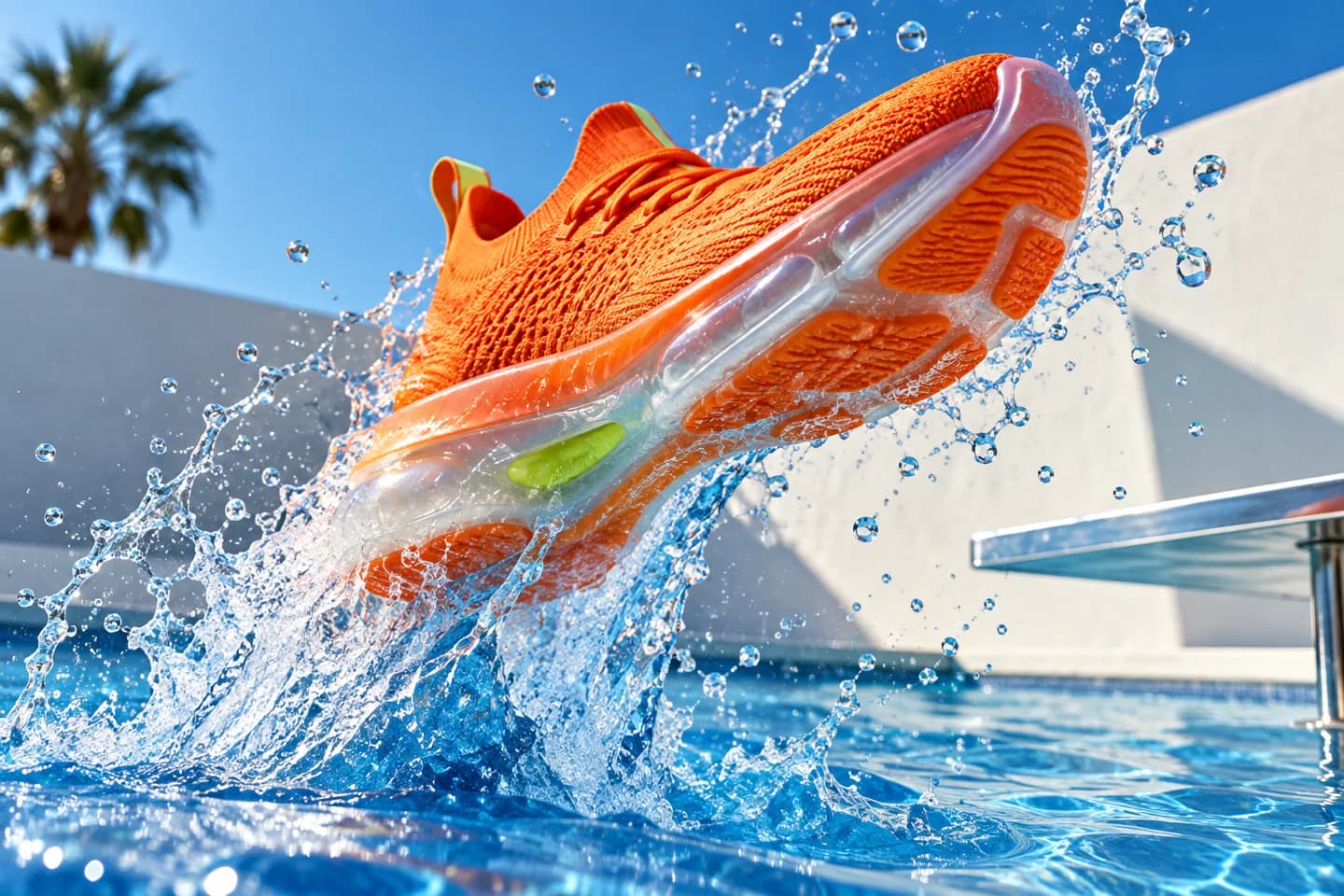
What this workflow produces
A matching set of campaign stills and a short motion sequence that share the same product, light and color.
Workflow steps
- 01
Add source media
Place the strongest reference image, product shot, or brand asset on the canvas so every downstream step starts from the same visual source.
- 02
Generate the key visual
Use an image generation or editing node to establish the composition, subject, and visual direction before spending credits on motion.
- 03
Branch useful variants
Duplicate the promising branch to test alternate styling, framing, or motion without rebuilding the whole workflow.
- 04
Create motion
Connect the approved still and text to a compatible video model, then generate a short clip with deliberate camera and subject movement.
- 05
Review, stitch, and export
Compare the outputs, trim or sequence the strongest clips, then export the finished asset in the format your channel needs.
How do you turn one product image into a set of campaign shots?
Approve one key visual first, then branch it into a few shots that change only the framing, such as a close detail, a wider setting and an action moment. Because every shot starts from the same reference, the product, light and color stay consistent across the set.
Lock the key visual first
Generate or upload the hero image and do not move on until the product shape, color and materials are right. Describe the lighting and palette in your prompt so every branch inherits them. Decide which formats you need, such as 16:9 for the web and 9:16 for social, before generating the set.
Example prompt for a detail shot
Use the key visual as the reference. Extreme close-up of the shoe's knit upper and laces, with water droplets frozen in the air. Same orange color, same bright pool light and sky. No logos, no text.
Example image-to-video prompt
The shoe drops into the pool and bursts back out of the water in slow motion, spraying droplets toward the camera. The camera follows the shoe upward. Keep its color, shape and materials unchanged. No added text.
These prompts are starting points, not the exact recipe for the example video above.
Review the set together
Place every shot side by side: the product color, sole, laces and materials should match in each one. Reject a shot that changes the product, even if the composition is better. In motion, check that the shoe keeps its shape when it hits the water. Keep the set small, three or four shots, so each one earns its place.
What does this workflow cost?
There is no fixed price for a campaign set. Each image and video uses credits based on the model and settings, and retries add to the total. Check the estimate before each run. Labs is available on every plan, including Free; stitching clips in Canvas requires Pro or Max.
Check current plans and creditsChoose models for the job
Model availability, supported inputs, speed, and credit cost vary. Use the live model directory to compare current options before you build.
This guide shows a reusable workflow pattern. Exact results vary by source media, prompt, selected model, and settings.
Start creating free