Connect Flowctory to a compatible AI assistant, choose a task below and copy its brief into your chat. Discover current models, review the credit quote and keep your creative work ready to reuse.
Keep these prompts and the demonstration checklist as a Markdown file.
Nine tasks to try
These copyable briefs prepare a quote, plan or editable draft first. They do not claim a completed generation. Public Flowctory sample images are starting references; a new prompt can produce a different result.
Illustration
What you need: The creative brief below; no reference image is needed.
01Image
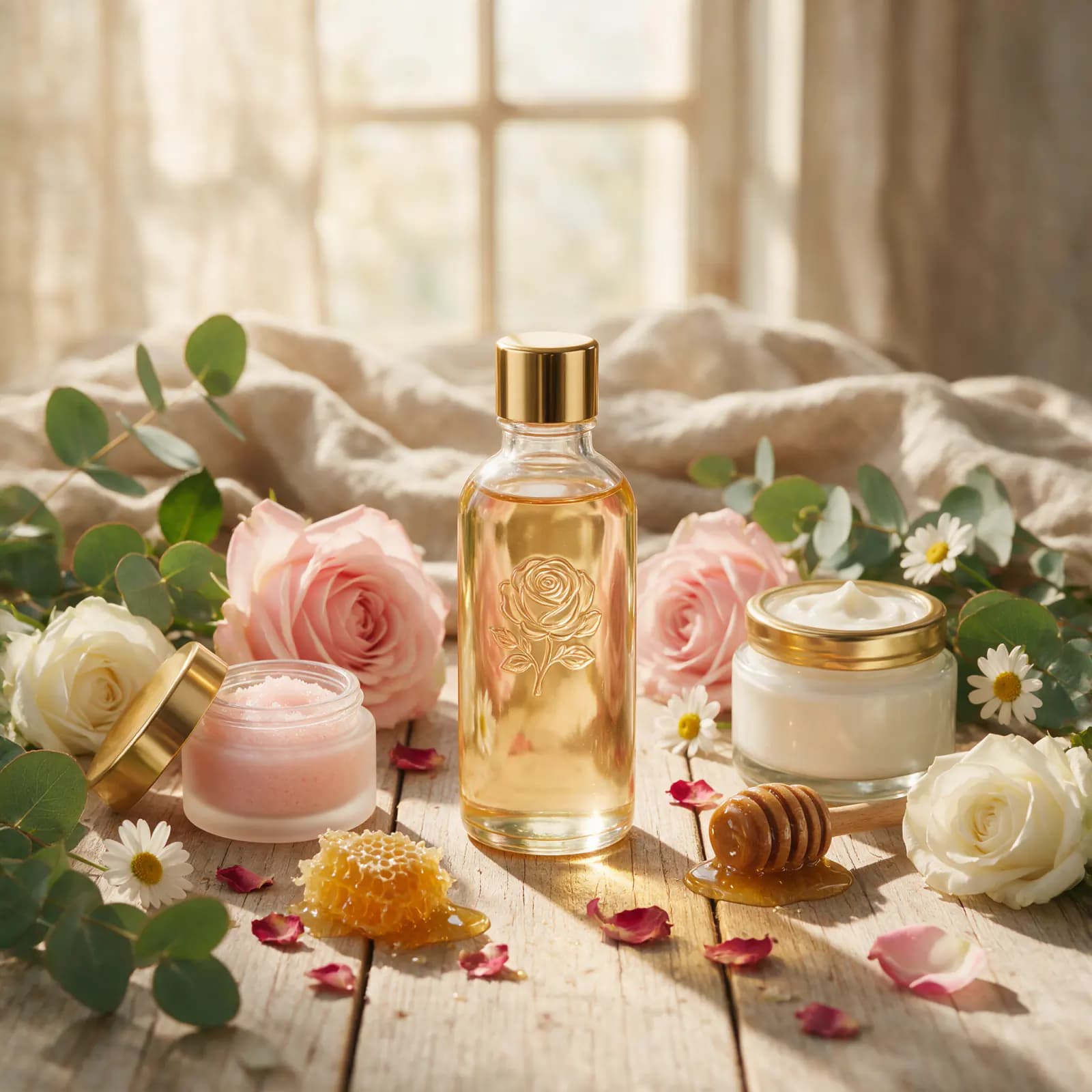
A botanical product campaign image
Turn a precise product brief into one square campaign image, with the model and cost visible before generation.
Flowctory MCP
Prepare one Flowctory image quote; do not generate yet. Creative brief: A square botanical perfume campaign photograph of a clear glass bottle with a gold cap and embossed rose, surrounded by pale pink and white roses, eucalyptus and honey on pale wood in warm window light. Photorealistic product photography, no text or logos. Request one image, 1:1 aspect ratio and 1K resolution. Show the actual selected model, delivery tier, supported settings and maximum credits. If a requested setting is unavailable, explain and stop. Do not add outputs or change the request. Wait for me to request generation and obtain inline approval if the selected option requires it.
How to use it
1Copy the brief into your connected assistant and review its fresh quote.
2Request the single unchanged image when ready; approve the exact Premium quote if required.
3Open the completed image and keep its download and Flowctory project link.
Review the result
Check the actual dimensions, bottle shape, botanical composition and unwanted lettering. A 1K setting is not a promise of one exact pixel size. Request a new quote before a revision.
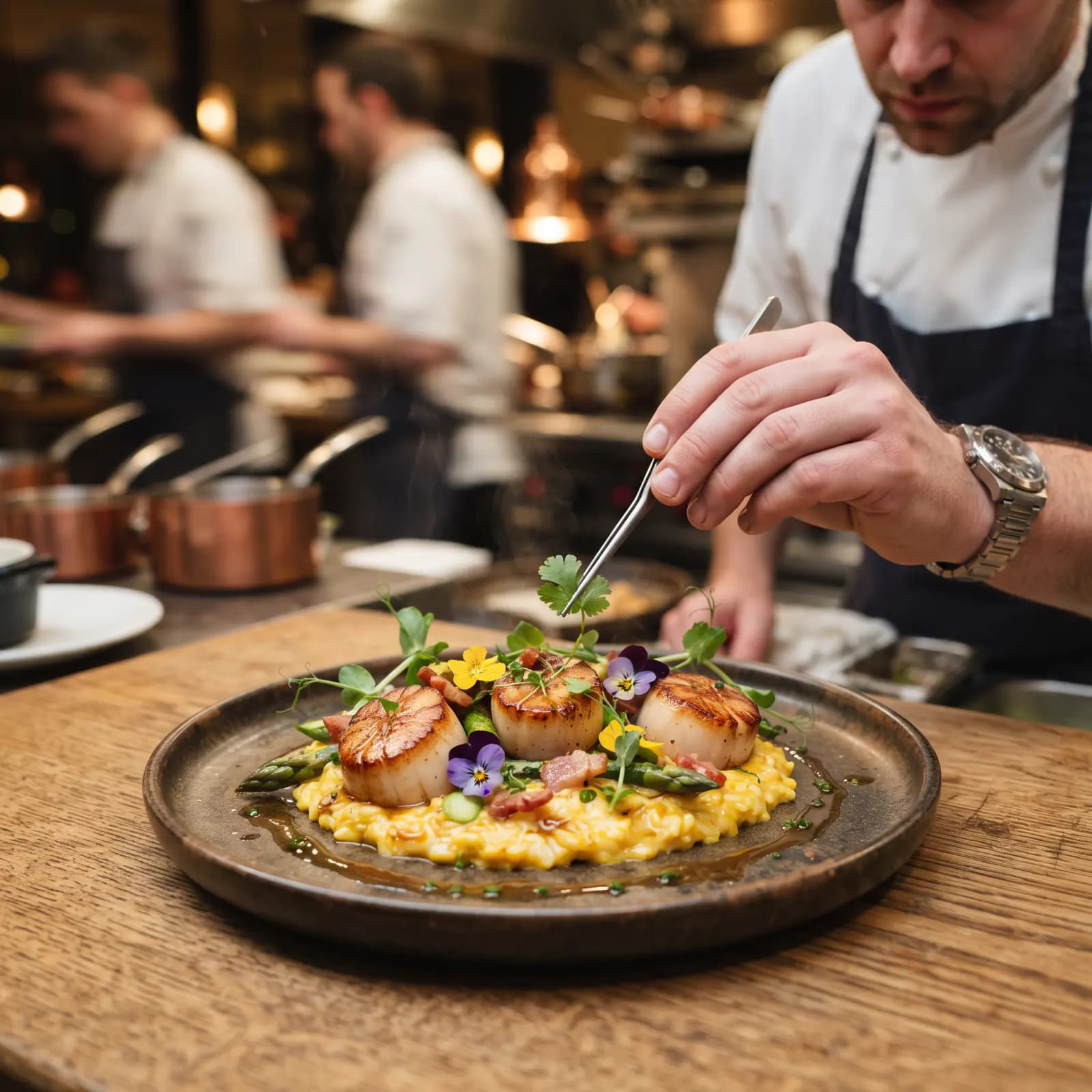
What you need: Flowctory's public chef image, linked in the prompt, or one image you have permission to use.
02Video
A still image into a short video
Animate a focused moment while keeping the source's subject, lighting and composition recognizable.
Flowctory MCP
Prepare a Flowctory image-to-video quote; do not generate yet. Use https://flowctory.com/landing/showcase/chef-plating.webp as the exact reference. Creative brief: Animate the chef carefully placing the final garnish on the scallop dish. Preserve the chef, plate, food and warm kitchen lighting. Use gentle camera movement and one continuous shot, with no added titles. Request one six-second clip. Discover a compatible active model and show its actual delivery tier, supported frame and audio settings, and maximum credit quote. Explain any crop; stop if the duration is unsupported. Do not add outputs or substitute settings. Wait for my generation request and any required inline approval.
How to use it
1Review the source image and copy the brief into your assistant.
2Review supported settings and the quote, then request the exact clip with required approval.
3Wait for completion and open or download the actual video.
Review the result
Measure duration and dimensions, watch the whole clip and check the sound separately. Look for recognizable food and hands, continuous movement and an honest crop. Existing website clips are separate examples.
What you need: Workspace permission and the public product reference in the prompt, or your own approved product image.
03Workflows
An editable product-ad Canvas draft
Prepare a reusable campaign brief and workflow before deciding whether to run it.
Flowctory MCP
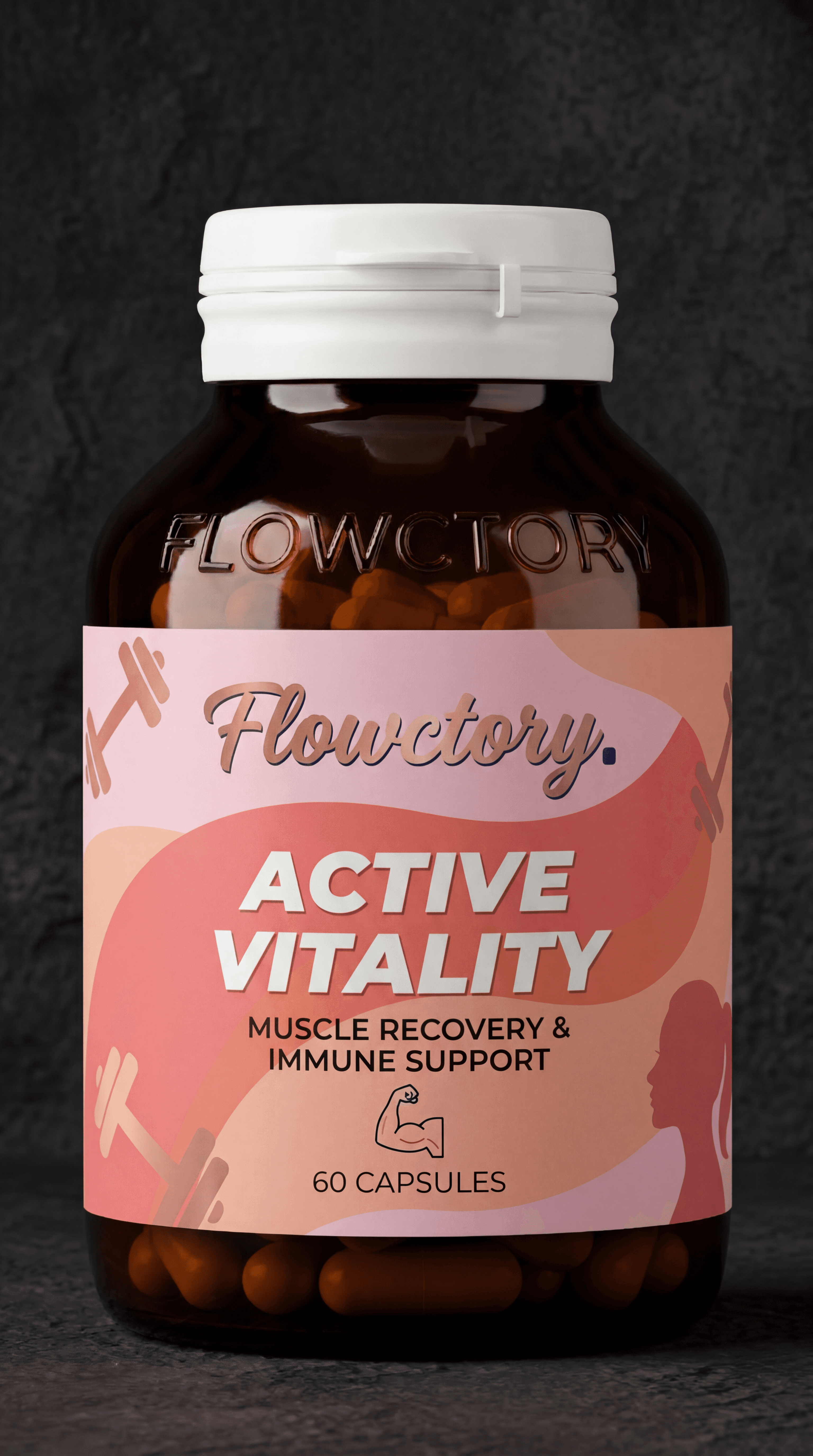
Prepare a new editable Flowctory Canvas draft named Product ad from my assistant. Use https://flowctory.com/landing-page/product.webp as the product reference. Target one vertical 9:16, ten-second ad with a product-led still, short factual script, motion and optional voiceover. Keep the product recognizable; invent no health benefits, testimonials or customer claims. Discover current controls and use supported Canvas node patterns. If a full graph is unavailable, save the brief and unresolved steps in an editable draft instead of inventing node settings. Return its Flowctory link. Do not execute, schedule, publish or replace an existing workflow. A later run needs an exact saved-graph quote and my inline approval.
How to use it
1Enable workspace access and ask your assistant to prepare the draft.
2Open its Flowctory link and review the brief, references and any unresolved setup.
3When ready to run it, request a quote for the exact saved workflow and approve that action.
Review the result
An editable draft should open with the intended brief and supported nodes. Draft creation is not a finished ad; verify actual output length, format, factual wording and audio after an approved run.
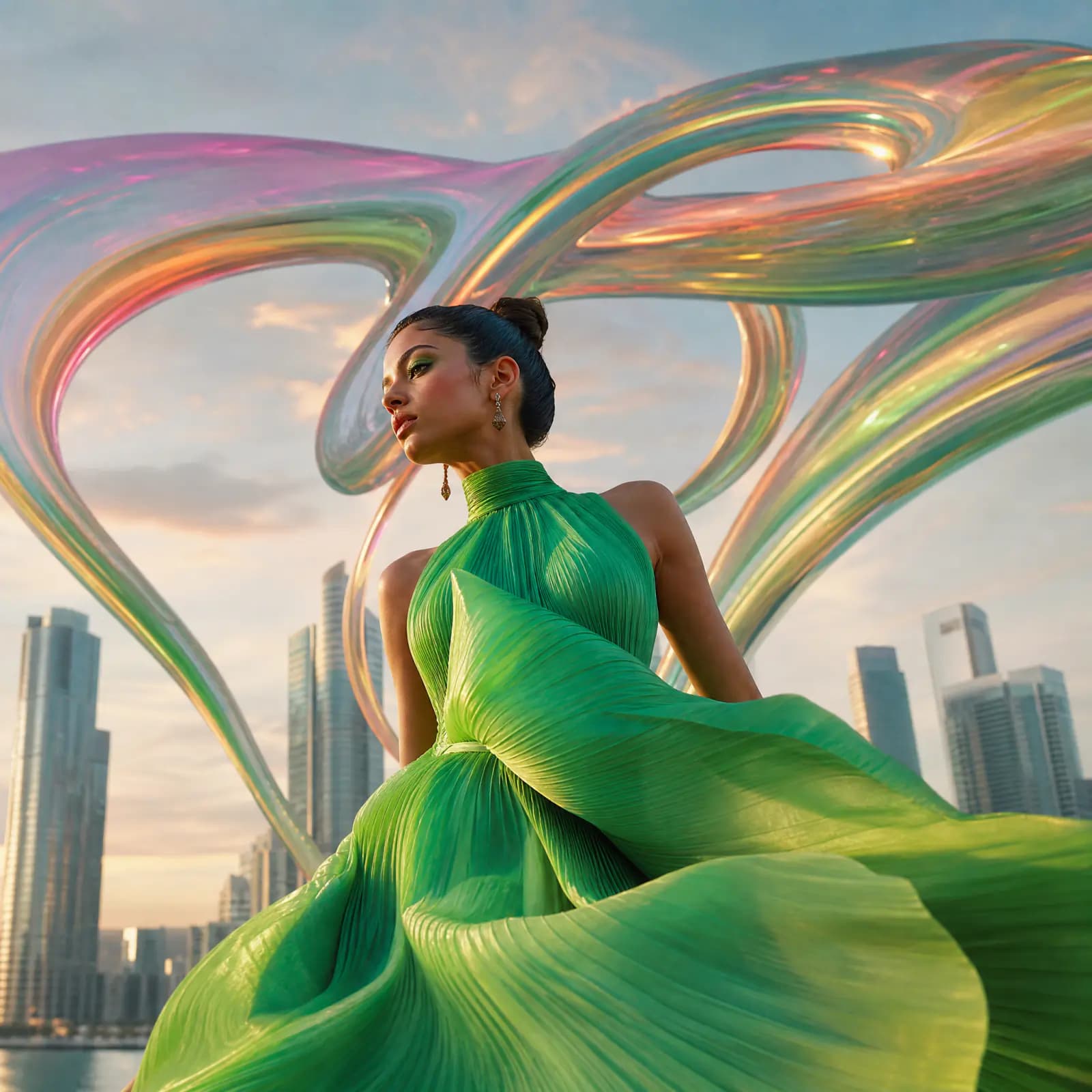
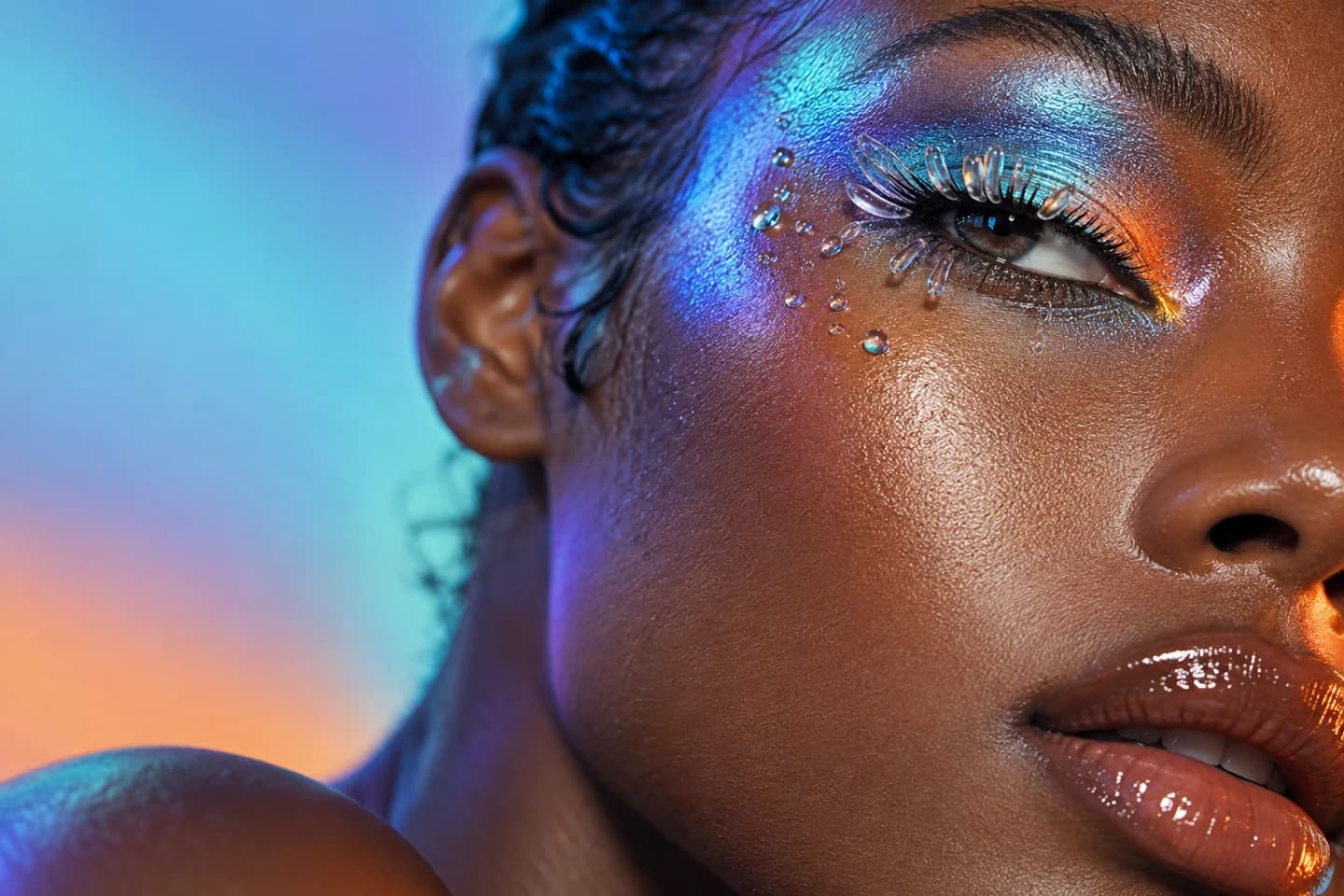
What you need: Flowctory's public prismatic portrait in the prompt, or a portrait you are authorized to edit.
04Image
A new direction for a reference portrait
Change a backdrop and lighting while asking the model to preserve the visible subject and makeup.
Flowctory MCP
Prepare a Flowctory reference-image edit quote; do not import or generate yet. Use https://flowctory.com/landing/selected-v5/beauty-prismatic.webp. Creative brief: Keep the same face, pose, skin texture and prismatic eye makeup. Change the background to soft warm beige and soften the blue fill light. Adapt the 3:2 source to 4:3 through added background or restrained reframing without cutting off the face or makeup. No text or logos. Request one 4:3 image at 1K. Discover compatible controls and obtain an automatic quote with this public reference. Show the actual model, tier, settings and maximum credits. Stop if the requested edit is unsupported or quoting needs a project write. Wait for my generation request and required approval.
How to use it
1Inspect the source and review the proposed change in your assistant.
2Review the actual quoted settings and approve the exact action when required.
3Compare the completed edit with the original side by side.
Review the result
Check 4:3 framing, face and makeup preservation, beige background and lighting. Report any identity drift or cropping; a reference is guidance, not an identity guarantee.
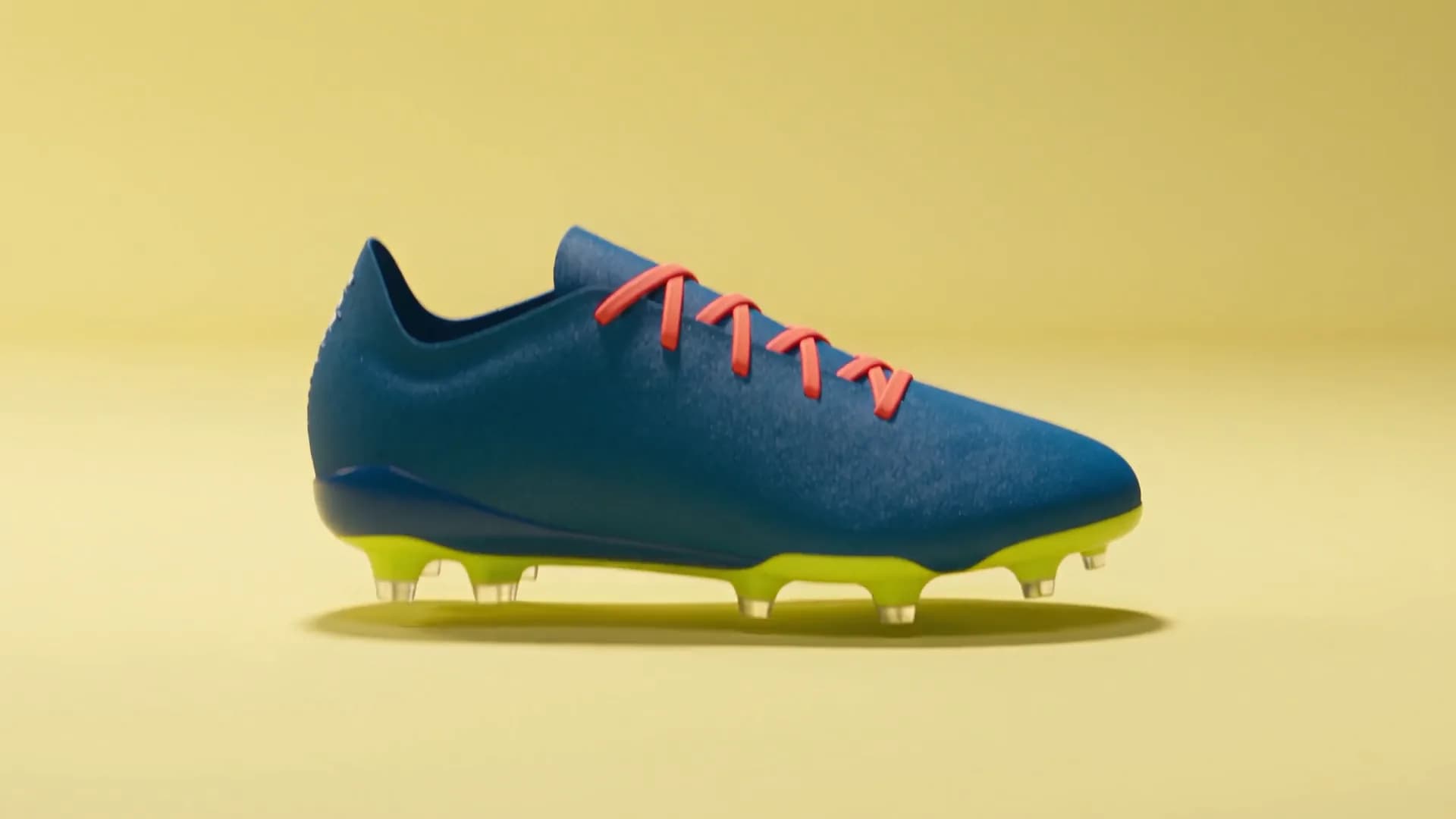
What you need: Flowctory's public sneaker image in the prompt. It is a wide source, so vertical framing needs review.
05Video
A vertical product-motion clip
Plan a short portrait-format reveal and address framing before spending credits.
Flowctory MCP
Prepare one Flowctory image-to-video quote; do not import or generate yet. Use https://flowctory.com/landing/motion-v4/sneaker-assembly.webp. Creative brief: A restrained sneaker reveal with a gentle camera orbit and clean studio background. Preserve the shoe's shape, colors and visible details, keeping the full shoe inside a vertical frame. No added text, logos or spoken narration. Request one five-second, 9:16, 1080p clip. Discover compatible first-frame controls and show the actual model, tier, duration, frame and audio settings, and maximum credits. Stop if controls are unsupported or framing would hide the shoe. If a portrait still is needed, propose it as a separate quoted step. Wait for my generation request and required approval.
How to use it
1Check whether the wide reference can fit the proposed portrait composition.
2Review the exact supported settings and quote before requesting generation.
3Open the completed clip and keep the source beside it for comparison.
Review the result
Measure the actual duration and dimensions. Check that the whole shoe stays recognizable throughout the clip. Inspect audio separately: a no-narration brief does not itself disable an audio setting.
Illustration
What you need: An existing owned Labs project you select and the exact script below. No voice sample is needed.
06Audio
A stock-voice campaign narration
Quote an exact spoken script, a discovered stock voice and supported audio settings.
Flowctory MCP
Prepare one Flowctory voiceover quote; do not generate or create a project. Let me select an existing owned Labs project first. Discover active Eleven v3 Premium text-to-speech controls and the stock voice Rachel. Request stability 0.5 and supported MP3 output at 44.1 kHz, 128 kbps; stop if unavailable instead of substituting. Speak exactly: Your next campaign starts with one idea. Create images, video and audio with Flowctory, then keep your workflow ready to reuse. Use clear, warm English at a natural pace, with no added words or music. Put only those spoken words in the speech text field. Show the full script, actual voice, format and exact maximum credit quote. Wait for my inline approval. Do not clone a voice or promise an exact duration.
How to use it
1Select your existing Labs project and review the discovered voice and format.
2Check every spoken word and approve the exact Premium quote inline.
3Download the completed audio and listen to the entire narration.
Review the result
Check word order, intelligible Flowctory pronunciation, no extra words or music, and clean playback. Measure actual duration and audio metadata; natural pacing is not an exact-duration control.
Illustration
What you need: Workspace permission, one image from your own library and an existing destination Labs project you select.
07Workflows
Reuse a saved image in Labs
Prepare an existing original for another creative task without regenerating it.
Flowctory MCP
Help me reuse one saved product image in Flowctory without generating again. Read only my image library and existing Labs projects. Show a small selection so I can choose the exact source image and destination project. Do not browse unrelated media or create a project. After I select both, use use_flowctory_library_media to prepare that exact original for the selected project. Return its safe display label, whether reuse succeeded and the Flowctory project link. Keep the source unchanged. Do not generate, publish, schedule or share. If permission, ownership, format, quota or destination access blocks reuse, explain and stop. Report prepared for reuse; do not claim a new image or insertion into Canvas.
How to use it
1Choose the original image and an existing Labs destination from the assistant's scoped selection.
2Ask it to reuse only that selected item and inspect the reported result.
3Open the intended project; quote any later generation separately.
Review the result
Confirm the intended source and destination, original media type and successful reuse. This prepares a reference for Labs; it is not a generated output or a claim that an asset was inserted into a Canvas node.
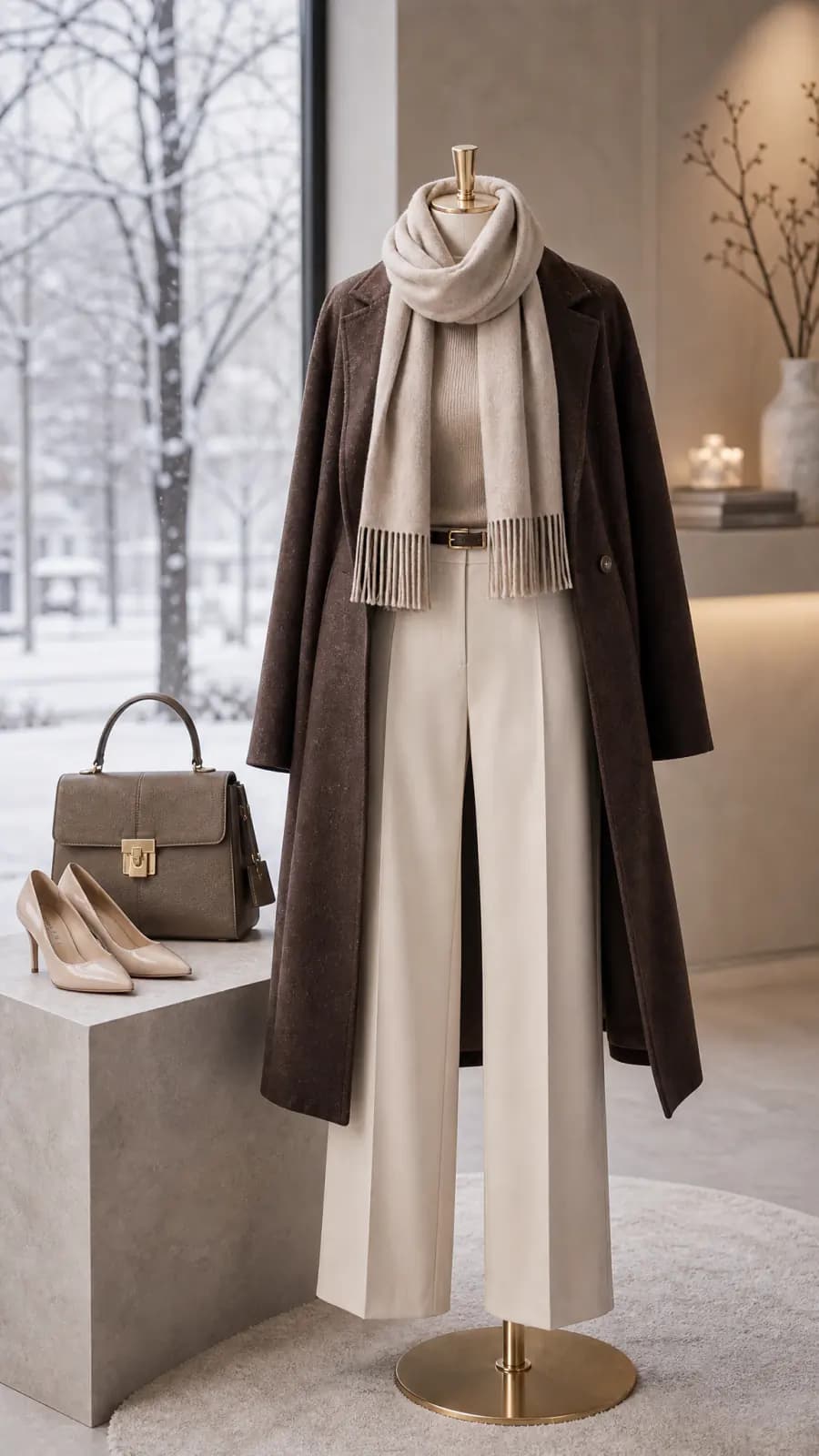
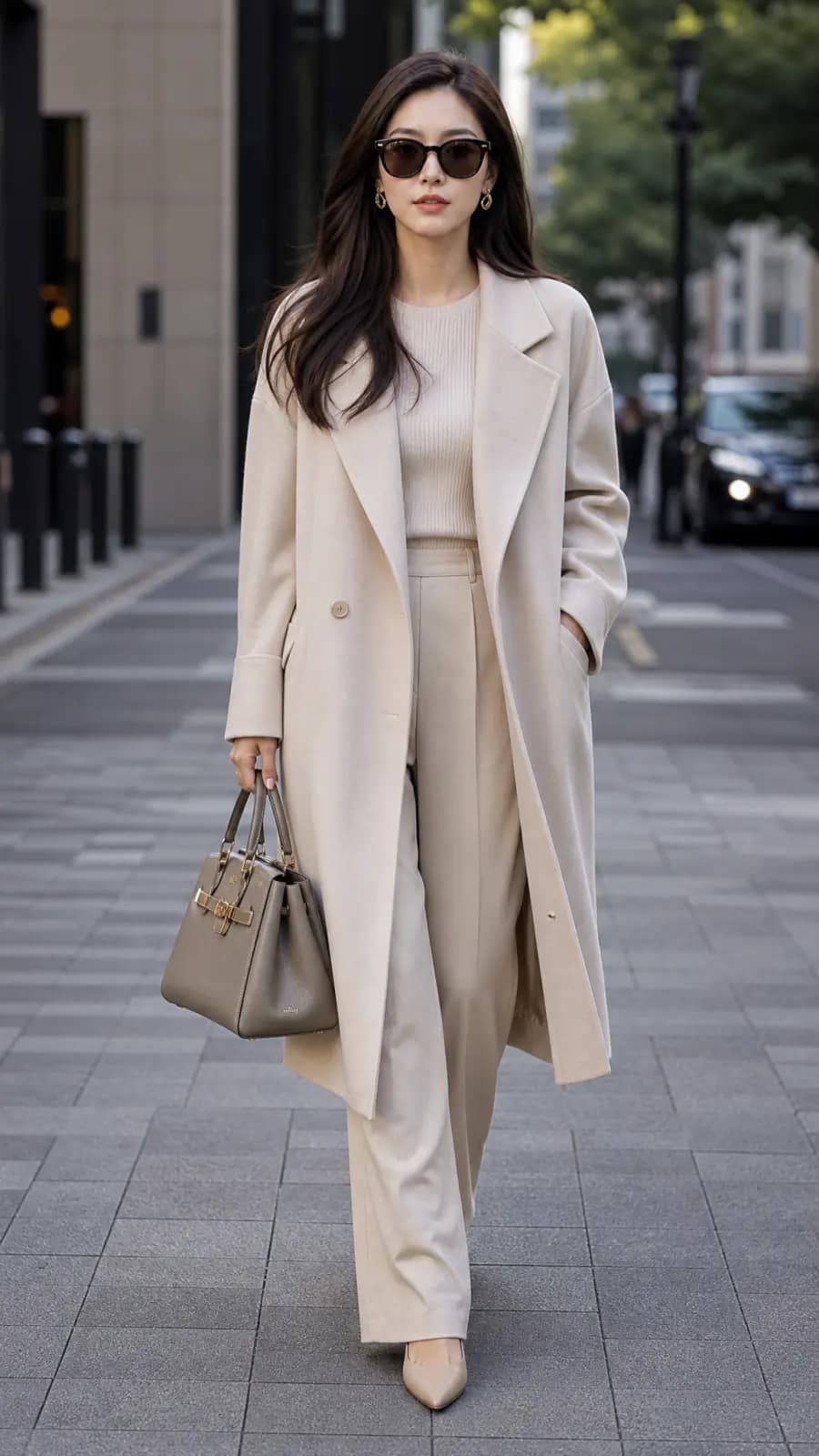
What you need: Flowctory's public city-coat reference in the prompt, or your own approved garment image.
08Image
A three-image fashion campaign plan
Prepare three distinct directions around one reference, with individual review criteria.
Flowctory MCP
Prepare a Flowctory fashion plan in chat only; do not import, quote, save or generate. Use https://flowctory.com/landing/fashion/city-coat.webp as the exact reference for all three briefs. Target one 9:16, 1K still per brief. Discover compatible reference-edit controls and list supported settings.
1. City editorial: The same person in the same cream long coat and coordinated outfit, dark sunglasses and existing handbag. Preserve visible lapels, buttons, length, drape and recognizable face. Use a natural full-length walking pose on quiet modern city pavement, soft daylight and a mildly blurred architectural background. Keep the whole coat in frame. No text, logos or new accessories.
2. Studio hero: The same person, cream coat, top and trousers, sunglasses and existing accessories. Change to a calm full-length standing pose against a warm pale studio backdrop, soft even light and a grounded shadow. Keep the coat open as in the reference; preserve its visible cut, cream tone and drape. Fit the complete outfit in frame. No text, logos or invented garment details.
3. Coat detail: A chest-to-mid-thigh editorial crop of the same cream coat, showing its visible lapel, front button area and natural drape. Preserve visible placement, proportions and color. Use soft neutral light and a quiet blurred backdrop. Invent no labels, fiber claims, stitching, hardware or hidden construction. No text or logos.
Show a three-shot checklist and flag risks to garment or person continuity. Do not promise a consistency switch, seed or identical outputs. If I later request production, quote each exact direction separately and obtain its required approval; one approval does not cover all three.
How to use it
1Prepare the three-shot plan and confirm the visible garment details to preserve.
2When requesting production, review each direction's fresh quote and required approval.
3Review the three actual outputs together before using the set.
Review the result
Check all three ratios and the coat's cut, color and visible details. Compare the person across the two hero views and inspect the detail crop for invented features. Shared references do not guarantee continuity.
Illustration
What you need: The factual message below. This task starts with assistant-written text, not a Flowctory model generation.
09Workflows
An English, French and Spanish campaign handoff
Use your assistant to adapt factual copy, then optionally keep it as a Flowctory note.
Flowctory MCP
Prepare English, French and Spanish campaign copy in chat only. Factual message: Flowctory connects a compatible AI assistant to images, video and audio, with credit quotes before generation and reusable Canvas drafts. For each language write a headline of at most 70 characters, a caption of at most 180 characters and one short CTA linking to https://flowctory.com/en/mcp. Keep Flowctory spelled exactly, preserve the facts and use natural local wording. Do not invent prices, free allowances, rankings, testimonials or features. Show the three versions and character counts. Identify this as assistant-written copy, not output from a Flowctory text model. Do not publish or save yet. If I request saving, use save_flowctory_note in the existing owned Labs project I select; do not create a project or run a model.
How to use it
1Review the three versions and character counts in your assistant.
2Edit the language and factual claims for your intended audience.
3Optionally select an existing Labs project and request a note save; publication is separate.
Review the result
Check limits, meaning and the setup link in each language. Assistant copy is not a Flowctory text-model result. A successful note save should return the intended project link.
Existing Flowctory examples
Explore these published Flowctory workflow examples and their original media. They illustrate creative directions; they were not produced by the MCP prompts above.
Use these practical briefs to document your own experience. Keep the original result, explain your choices and report limitations alongside what worked.
Creator demonstration brief
Choose one image, short clip or editable draft that answers a specific creative question. Show the approved source, prompt, settings, quote and actual result. Keep visible imperfections and disclose edits or time-lapse in your recording.
Customer case study brief
Document one task you actually completed and the output you used. Explain your choices, revisions and known credit charge. Separate your experience from measured business results; include savings or sales only when you can support them.
Agency workflow brief
Start with a generic or approved campaign asset and prepare a reusable Canvas draft. Show what is editable and what still needs setup. Keep confidential client work out of the demonstration and distinguish draft preparation from approved execution.
Independent review brief
Choose your own task and conclusions. Keep an evidence bundle with the source, exact brief, quote, original result, attempts and limitations. Identify supplied examples and any support; an existing Flowctory sample is not your independent reproduction.
Technical MCP review brief
Record your assistant and version, connection outcome, model discovery and a quote-only request or editable draft. Test generation separately with its required approval. Describe observed host limits without publishing credentials, private project data or raw account responses.
Community demonstration brief
Check the community's rules and use one useful, clearly disclosed example in the permitted format. Include the prompt, relevant settings, actual outcome and limitations. Ask before reusing another member's work or recording.
Directory facts brief
Use current public setup, model and pricing pages to verify a factual entry: media generation, asset reuse and editable Canvas drafts through a compatible assistant. Check the destination's requirements and date your verification. A listing is not a certification or an independent review.
Workshop brief
Teach one bounded task using an approved input. Begin with model discovery and a quote or editable draft, then demonstrate a separately approved run. Give learners a result checklist and explain variation, credit use and host requirements.
A useful case study in eight parts
01
Task and context: what you tried to accomplish and whose experience this is.
02
Inputs and brief: the approved source and exact creative instructions; label substitutions.
03
Choices: your assistant, selected model, delivery tier, supported settings and dated quote.
04
Process: attempts, required approval, edits and whether the work was a draft or completed run.
05
Result: the original output, measured dimensions or duration, must-haves and mismatches.
06
Cost and use: maximum quoted credits, known actual charge and how you used the result.
07
Reproduction: approved inputs, a fresh quote and supported steps; no identical-output promise.
08
Attribution: approved names or quotes, relationships, support and publication permissions.
Choose what you share
Use only inputs, voices and recordings you are entitled to share. Participation and attribution are voluntary. Agree separately on the exact assets, caption, attribution, languages and destinations before someone republishes your work. Keep account details, private conversations and client content out of public exports. Independent reviewers retain control of their conclusions; permission to inspect evidence does not grant permission to publish it.
Show what actually happened
A quote is a price proposal, a saved draft is editable work and a completed generation is an actual output. Record them separately. For a demonstration, keep the approved input, exact creative brief, selected settings, dated quote, original output and known charge. Report attempts, changes and anything you could not inspect. Shared prompts and references do not guarantee identical results.
 Illustration